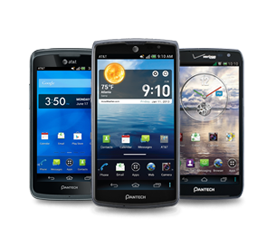
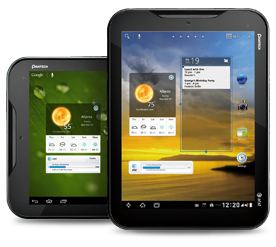
You’re someone who always likes to stay ahead of the curve in terms of technology, and your choice of phone should reflect that. While everyone else is crawling along in the slow lane at 3G speeds, you’re flying past them on your lightning fast 4G LTE Pantech Breakout. With 4G LTE technology and the power and stability of Verizon’s most advanced network, the Breakout leaves other smartphones in the dust.

What’s the point of having all of that speed and power if you can’t look good while using it? No need to worry about that with the Breakout. With its premium slim design (12mm), 4” Touch display, metal front keys and distinctive grip, it’s sure to make heads turn.
One size doesn’t always fit all. We know that you’re unique and are always looking for ways to personalize your experiences. That’s why we’ve included 7 different customizable home screens that you can use to organize and arrange the preferences, shortcuts, widgets and folders that you use the most.

Bring all of the most important moments in your life into better focus with a 5.0MP rear camera and VGA front facing camera (for those moments where you don’t have your own professional photographer handy).

A powerful smartphone needs a powerful operating system, and the Breakout has that one covered. With Android’s 2.3 Gingerbread OS and a 1Ghz Fusion processor, there’s nothing it can’t do.

Stay in touch with friends and keep up to date with the latest news and information with our seamless integration of social and service widgets and applications.

Multi-tasking has never been easier with Breakout’s advanced Task Manager functionality. Check the status of up to 8 applications at a time on one screen in order to improve efficiency. This smartphone really helps you work smarter.

You’ll be the most popular person on the block with the Breakout’s mobile hotspot feature. Provide internet connectivity for up to 10 devices at a time when you use it as a Wi-Fi hotspot.


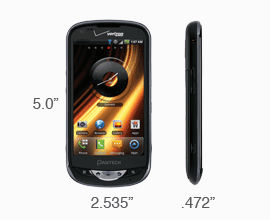
| Height | 5.0" |
|---|---|
| Width | 2.535" |
| Depth | 0.472" |
| Weight | 4.868 oz |
| Display Size | 4.0" LCD |
|---|---|
| Resolution | 480 x 800 |
| OS | Android OS |
|---|
| Cellular Technology | GSM/GPRS / CDMA 2000 1xRTT / 1xEVDO Rev. A 800/1900 / 4G LTE 700 |
|---|---|
| Bluetooth |

|
| Text Messaging |
|
|---|---|
| Instant Messaging (IM) |
|
| Mobile Email |
|
| Web Browser |
|
|---|---|
| Preloaded Apps |
|
| Camera Resolution | 2584 x 1936 |
|---|---|
| Video Capture |
|
| Video Player |
|
|---|---|
| Music Player |
|
| Battery Type | 1500 mAh |
|---|---|
| User Talk Time | 347 Minutes |
| Standby Time | 303 Hours |
| Format | microSD™ card |
|---|
| Keyboard | Capacitive Touchscreen |
|---|---|
| Predictive Text |
|
| External Memory | Up to 32GB |
|---|---|
| Virtual QWERTY Keyboard |
|
| SWYPE |
|
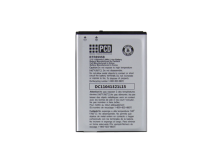
Pantech's Lithium Ion battery is designed to give you the best performance possible. This Lithium Ion battery is specifically engineered for your Pantech mobile phone to deliver the most reliable and long lasting power.
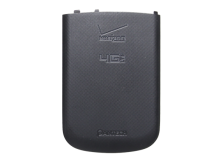
The Pantech Replacement Battery Cover offers additional protection for your Lithium Ion battery. This Battery Cover is to be used with the Pantech Lithium Ion battery sold separately.
The micro-USB to USB Charging Data Cable connects your Pantech device to your Pantech wall charger for the best possible charging experience. The USB Charging Data Cable also allows you to transfer data files such as music, video, image, etc…between your Pantech device and a compatible PC via USB.
Don’t risk a dead battery at the moment when you need your cell phone the most. By keeping the Pantech Wall Charger handy while at home or at the office, you can be sure that your Pantech device’s battery life is topped off and you're ready to go at a moment's notice.
To order accessories for your Pantech Mobile device go to , choose Our Devices, select Support or call 8:30 AM – 5:00 PM EST Mon through Fri
Music only plays files saved on the microSD card of your phone:
[Note] MTP connection or USB storage must be turned on after connecting to the PC to enable file transfer.
If you have turned on the USB debugging mode:
If you are not using the USB debugging function on your phone:
You can add multiple accounts. Press the Menu key at the Home screen and tap Settings > Accounts & sync > Add account. There is no limited number of accounts you can add, but adding multiple accounts may cause the lagging performance of your phone.
To remove an Email account, press the Menu key on the Email application home screen, tap More > Accounts. Touch and hold on the account you want to remove and select Remove account from the pop-up menu list.
To remove a Gmail account, press the Menu key at the Home screen and tap Settings > Accounts & sync. Tap the Gmail account you want to remove an tap Remove account.
Pictures and videos are always saved onto microSD card mounted on your phone (under the file name sdcard:\DCIM\Camera). You can not change the default folder.
To uninstall or delete applications:
To format the microSD card:
[Note] Please note that format will erase all data in your microSD card and will not restore any information.
Yes. You can add your own signature to all outgoing emails:
To clear the browser data:
[Note] If you want to clear all browser data, scroll down and tap Reset to Default. Tap OK.
You can adjust the backlight settings by pressing the Menu key at the Home screen and tapping Settings > Display. You can also go directly to display settings from the status bar. Touch on the top of the Home screen and drag the status bar down. Tap the arrow on the top right corner to see the full bar. Tap Display Setting. In this section, you will find options to change the Brightness, Auto-rotate screen, Animation and also Screen timeout interval.
[Note] Depending on the backlight settings, your phone battery life will differ. To preserve the battery power, adjust to lower Brightness, No animations and the shortest Screen timeout interval.
To browse through applications:
To download applications:
[Note] The applications you download from Market have not been tested by Pantech or VZW. All support for the application you choose is the responsibility of the developer of that application, not Pantech or VZW.
To change the Bluetooth device name on your phone:
At the Home screen, press the Menu key and tap Wallpaper or touch and hold on the Home screen and tap Wallpapers from the pop-up menu:
[Note] Live wallpapers will drain your battery quickly. Please do not set Live wallpaper on the Home screen if you want save battery life.
There are two ways to obtain the MAC address:
To send a meeting request:
To set up Email:
To set up Gmail, go to Gmail application, create or sign into a Google Account and finish setup.
Your phone is capable of running multiple applications at the same time. Therefore, you do not have to close one app before opening another one. While running an app, press Home key to return to the Home screen and go to Applications list to open another app.
To switch from one running app to another, long press the Home key to view the recently run apps and then touch the one you want to open.
To turn on or off a Wi-Fi on your phone in easy way:
To turn on or off a Wi-Fi in Settings:
To zoom in/out, use two fingers on touch screen in a pinching motion or double tap the screen using one finger. Zoom in/out icons may also appear at the bottom right of your screen.
[Note] Some webpages have screens that do not respond to multi-touch features to zoom in/out.
Pantech Breakout comes with Bluetooth® 3.0 with Enhanced Data Rate. Supported profiles are headset, hands-free, object push(OPP), advanced audio distribution(stereo)(A2DP), audio/video remote control(AVRCP), file transfer(FTP) server, phone book access(PBAP), basic printing profile(BPP), human interface device(HID).
Modes are pre-determined Home screen configurations which come with their own layout including wallpaper, widgets and shortcuts. There are four different Modes in Pantech Breakout - Default, Media, Communication, Empty, and you can also make your own Mode.
[Note] You are not able to save ringtones as part of the Mode or delete any of the Default modes.
Yes. The Pantech Breakout runs Android OS version 2.3 (Gingerbread), and thus supports multi-accounts. To add accounts:
Yes, but you must have a Mobile Broadband Connection plan. There are two ways to make your phone as a wireless modem. Choose any of the below steps.
To use the USB tethering:
To make your phone a portable Wi-Fi hotspot:
To configure settings for a portable Wi-Fi hotspot:
You can customize the Home screen with shortcuts, widgets, folders, wallpapers and your desired applications:
Photo and/or video editor application is not built in my Pantech Breakout. You can search for an editor application from Market and download it to your phone.
To add a new VPN network:
To connect to VPN:
First you have to set up your Microsoft Exchange email account and/or Google account on your phone. Once this is done:
You can manage your schedule using Calendar on your phone.
To set up Calendar on your phone:
To create an event:
To view and edit an event:
To configure settings for Calendar:
Document Viewer enables you to read documents in a variety of formats that are stored in your phone.
To read documents:
To move to a page or search for words in a document:
Keep your head in the game with NFL Mobile only from Verizon. NFL Mobile is your exclusive mobile source for live game videos, live game audio, news, highlights and more. Data charges apply when downloading and using NFL Mobile. To use this app, go to NFL Mobile from the Apps list and download it to your phone. Register your account of NFL, and the app will automatically send you a text message about the games you are interested in.
>
Need for Speed Shift is a long-running racing game. To use this app, go to NFS Shift from the Apps list and download it to your phone.
[Note] This application needs microSD card for downloading resource files.
Talk is an instant messaging service provided by Google™. To use Talk, go to Talk from Applications list and sign in to your Google account.
To change your profile:
To add friends and start conversations:
For general and notification settings:
Yes. You can claim for refund within a short time after your purchase (e.g. within 15 minutes after your purchase):
[Note] Refund policy is prescribed by Google™ or the developer of the application, and Pantech is not responsible for processing the refund for paid applications.
Yes. To move saved applications to your microSD card:
[Note] Applications may be movable or unmovable to microSD card depending on their property. If Move to SD card is not highlighted, it means the application is only stored in internal memory of your phone. Related widgets may disappear from the Home screen once you change the storage location of the application.
Yes. All previously downloaded applications are listed and available for download (without being charged again in case of payable applications) at below address:
To change the Bluetooth visibility options on your phone:
To assign a ringtone to a contact:
If you want to set one of your songs from the microSD card as a contact ringtone:
Run Camera application, press the Menu key and at the camera viewfinder, tap any of the below options to configure camera settings:
You can change the look of the Apps screen:
You can check the memory status from Task Manager:
To check the memory status of your microSD card, from the Home screen, press the Menu key and tap Settings > SD card & phone storage. You can check the Total space and Available space in your microSD card.
To configure the roaming settings on your phone:
Make sure you have turned on the Wi-Fi and choose any of the below steps.
To connect to a Wi-Fi network:
In case you are using the WPS connection with your Wi-Fi Access Point (router):
In case the wireless network you are trying to connect is configured for static IP addresses only:
To disconnect to a Wi-Fi network:
You can synchronize music files between your phone and PC:
You can copy any files between your phone and PC:
[Note] In a mass storage mode, a few applications - Handy Memo, Music Player, Camera, Camcorder, Gallery, Document Viewer and others - that need the microSD card will not run.
To create and send a SMS, go to Messaging application. Tap New message, input destination recipient in To field and your message contents in Type to compose field. When you are done, tap Send.
To create and send a MMS, use the same above steps, but before you send, press the Menu key and tap Attach. Choose which you want to insert in your multimedia message and when you are done, tap Send.
Lock the screen to protect information or save the usage of battery. To lock the screen and keys, press the Power button located on the right side of your phone. Display will turn off when locked.
To unlock, press the Power button first and then drag the lock to the right. If you have set up a pattern or PIN lock, enter the unlock passcode.
To make a conference call:
You can automatically receive the network date and time to your phone.
You can also manually select your date and time:
Make sure you have turned on the Bluetooth and follow the below steps:
Make sure you have turned on the Wi-Fi and choose any of the below steps.
To search for the available Wi-Fi networks:
To manually add a Wi-Fi network:
To send your files to another device via Bluetooth:
To set the classic ringtone for all incoming calls:
To set the music file in your microSD card as ringtone:
To set a custom ringtone for SMS and MMS:
To set a custom ringtone for incoming emails:
[Note] If Notifications or Email notifications is not selected, Select ringtone menu will be deactivated.
Airplane mode helps you turn off all of your wireless connections. This can be convenient on flight:
[Note] Airplane mode will deactivate the cellular signal, Wi-Fi, Bluetooth and GPS functions all at once. However, you can manually turn on each function for your preference.
You can get the weather information of cities you would like to choose yourself:
To display the weather information of the city you selected:
To have the weather information update automatically as you change locations:
To share images with friends:
[Note] To upload your picture on Picasa web albums, make sure you have registered your Google account on Picasa, If you have not, visit the Google website from a computer, register your Google account to Picasa and then, re-sign in to Google on your phone. To do this, you may have to remove the previous Google account and re-set up on your phone.
To stop any application from running in the background:
To turn on or off the Bluetooth on your phone in easy way:
To turn on or off the Bluetooth in Settings:
Go to Voice Dialer from Apps list. Wait until you see Listening on the screen and say a command.
[Note] Examples of commands are shown on your screen to give instructions. Please say Call in front of person names, Dial in front of numbers and Open in front of application names.
Enjoy YouTube™ with my Pantech Breakout. Go to YouTube from the Apps list:
To watch a video:
To upload a video:
To manage your YouTube account:
To adjust YouTube settings:
[Note] YouTube content on phone is designed for phone only and does not stream through HDMI cable connection.
To purchase an application, you need to establish a Google Checkout account that requires your Google account and in addition, your billing information. You can choose between the following options to do this:
The Amazon Kindle is an e-book reader developed by Amazon.com which uses wireless connectivity to enable users to shop for, download, browse, and read e-books, newspapers, magazines, blogs, and other digital media.
To use this application:
You can protect your phone from unauthorized use by locking with your own Android pattern lock.
You can download and watch the latest movies from Blockbuster right on Pantech Breakout with this preloaded app. Choose from hundreds of movies, from cinema classics to the hottest new releases.
To use this application,
Books is an e-book reader application, where you can browse, shop, download and read e-books from Google Books. You must register at least one or more Google accounts to use this application.
To use this app:
City ID displays the City & State of an incoming call. You can have a 15 day free trial, and then a subscription fee is required to continue the service.
You can search for a keyword within Web, Amazon Kindle, Market Apps, Contacts, Messaging, Slacker and Voice Search using Google Search:
You can select the locations you want to search within your phone:
For more Google Search settings, press the Menu key while you are on Google Search home page and tap Search settings > Google search.
Maps powered by Google™ offers useful information based on your region.
Before using this app, make sure you are connected to a Wi-Fi or 3G network and in addition, GPS satellites for collecting accurate information on your location:
To use Maps application:
[Note] Using GPS satellites signal requires high power consumption; when you are not using it, please turn it off to save battery power.
Market is an application that links to the Android Market™ where an Android user can download all the kinds of applications (for free or payable).
[Note] You need at least one Google account (active user ID and password for Gmail) on your phone to access Market. If you already have a registered account, sign in. If you do not have an account, create one first and sign in.
Pantech Breakout can offer the internet connection to other devices around you by becoming a Wi-Fi hotspot. Make sure to turn off the Wi-Fi network connection; Wi-Fi network and Mobile Hotspot cannot run at the same time.
Becoming a Mobile Hotspot for 3G network:
Mobile IM is a preloaded instant messenger application to use AIM, Windows Live, Yahoo on my Pantech Breakout.
To use this application,
Make sure you have turned on the GPS function before using Navigation.
To search the destination:
To find directions:
To check the traffic conditions:
Net Media enables you to use, share and enjoy media files between DLNA-enabled devices (e.g. computer, TV, etc.) while the Wi-Fi feature is activated. Make sure to activate the Wi-Fi network on your phone. The DLNA-enabled devices also must be connected to the same Wi-Fi network with your phone.
To initiate Net Media:
To play media files on another device:
To play files from your phone on another device:
To download/upload media files:
News and Weather offers news in various field and weather information in your region.
To view weather information:
To view news information:
To customize the app:
With Rhapsody, you can always hear the music you're into, with over thirteen million songs and every genre to choose from. The Rhapsody even lets you download playlists directly to your device, so you don't need an active connection and you'll save battery life compared to streaming. Also, you can listen while you text, browse and run other applications. To use this app, go to Rhapsody from the Apps list and download it to your phone.
[Note] You need to pay for the service or you can get free trial, also you can pay by your Verizon account.
Slacker Radio is a free, totally customizable radio with over 100 genre stations. Listen to free personalized radio on your Pantech Breakout. Listen to over 100 expert-programmed radio stations or create your own custom stations from millions of songs. With a Slacker Radio Plus or Slacker Premium Radio subscription, you can store your favorite Slacker stations on your phone and listen even when you don’t have a wireless or Wi-Fi connection. To use this app, go to Slacker from the Apps list and register an account.
Swype is a fast and easy way to write a message in the touch screen mode. To use Swype:
Task manager shows the list of running applications and memory, network and CPU status of device. Using the Task Manager, you can end the process of applications running in the background to save the battery.
Your Pantech Breakout provides seven different screens where you can arrange items for your preferences. You can change the number of extended Home screens if you want:
You can download as many applications as you want unless the total size of downloaded applications does not exceed 500MB, which is the internal memory size of my Pantech Breakout. Usually when the phone is booted up, the acutal user memory size is 350MB. When this size is left for less than 10%, your phone will not download any more application. You can move your applications to microSD card.
TuneWiki is social network music player with free full lyrics and album art. Share the comments for the songs with your friends and find people, who enjoy the song you hear now with Google map. TuneWiki also provides full free songID service and the top chart of your country and the world. To use this app, go to TuneWiki from the Apps list.
VZ Navigator is a GPS navigation service provided by Verizon Wireless. This application requires data usage for download and use which will be billed to your account according to your plan, feature or bundle. To use this app, go to VZ Navigator from the Apps list.
All applications are by default saved in the internal memory of your phone. Touch Apps from the Home screen to view the list of all applications.
To view only the list of applications downloaded from Market, go to Market, press the Menu key and tap My apps.
If you click the media link in the browser, you are able to select between the two applications, Movie and Media player to play the music/video file.
[Note] Some files may not be supported by either Movie or Media Player. Please download from Market the compatible media player with the file type you are trying to play.
Go to Camera from the Apps list to launch the application. There Is also a shortcut key sited on the right side of your phone.
[Note] Multimedia applications such as Camera, Camcorder and Music Player can only be used with the microSD card inserted in your phone. Please always have a microSD card ready on the phone before launching multimedia applications. Your phone supports removable microSD card up to 32GB capacity.
In case your device would not power on, please try any of the steps below:
The latest software for your device is not available online. You can find your device software information in Menu > Settings > AT&T software update > Check for updates. If a new version is available for download, please update your device.
[Note] When downloading the software, we highly recommend you to connect to Wi-Fi network instead of using 3G network in order to fasten the download speed and avoid the heavy charges for using 3G data services.
If your device has a problem not responding or slowing down, you may try a hard reset by removing and reinserting the battery.
If you would like to erase all data on your device, please do a Factory data reset. To do this, go to Settings. Tap Privacy > Factory data reset > Reset device > Erase everything. We recommend you back up your data before doing Factory data reset because it will delete your Google account information and all downloaded applications on your device including ringtones. However, factory data reset will not erase the data saved on the SIM card and microSD card.
Please make sure your battery is charged fully before use. Nevertheless, some features such as playing the media files, using camera or camcorder, running applications in the background, constantly syncing email and using Wi-Fi or Bluetooth, can drain the battery more quickly than usual.
Below suggestions would help conserve the power:
Please try any of the steps below:
PC Suite enables communication between your device and compatible PC. Pantech PC Suite is the Windows based program that enables you to manage your device while connected to a compatible PC. For example, you can sync your outlook contacts with your phone's contacts using Pantech PC Suite.
Please download the compatible PC Suite with your Pantech Crossover and then connect to the PC:
[Note] PC Suite for the Pantech Crossover works with Windows 2000 or XP family, Windows7 and Vista 32 bit. Your PC must have minimum 300MB of free disk space to install PC Suite.
Please try any of the steps below if your device screen is not responsive:
If your device is in use for prolonged periods of time (e.g. talking on the device, playing music or video, browsing the web, running applications or charging the battery), it may become warmer than when in standby mode. In most cases, this condition is normal and therefore not a failure of the device.
You are allowed to enter a pattern for five times and after that, you will be asked to wait for 30 seconds before you can try again. If you continuously enter the wrong pattern, your device will be permanently locked and only be unlocked with your Google account. In case you have forgotten the unlock pattern:
If you cannot recall the unlock pattern and has the Google account set up on your device, tap OK > Forgot Pattern? on the bottom of your screen. Sign in with your Google account and create a new unlock pattern. If you know your Google account address, but have forgotten the its password, please visit http://www.gmail.com on a computer. From the Gmail login page, click on the Can't access your account? and follow the prompts to have Gmail send you a password change request link to your other email address. When you have received a new login information, use that information to unlock your device following steps above.
If you cannot recall the unlock pattern and does not have the Google account set up on your device, there is no way to unlock the device. Please return your device to obtain repair or replacement service. Make sure to check with your carrier or Pantech technical support center if your device is eligible for warranty service.
[Note] Please try not to set up a complicated unlock pattern that is easy to forget. Your device will be still locked when restarted.
The SIM card is the Subscriber Identity Module card that you receive with your device upon activation. It contains your network registration information and PIN code. The SIM card is physically installed in your device and one of its primary functions is to identify your device uniquely - apart from all other devices on the carrier's network.
Please try any of the steps below, if your camera does not work:
When Compass does not work correctly, hold your device and draw a 8 for 5 times in a non-magnetic environment. Make sure to use only your wrist.
[Note] There is no setting or application to adjust the digital compass sensor. While drawing 8, it will automatically make correction.
Make sure you are in a Wi-Fi service area and covered with strong Wi-Fi signal. The number of bars in Wi-Fi icon shows the signal strength.
If the problem is not solved, try any of the steps below:
[Note] If too many people are connected to one Wi-Fi network, your device may fail to access Wi-Fi due to congestion.
Try to power cycle your device using the normal on-off button or icon. If this doesn't work, you can force a hard reset by removing the battery, reinserting it, and turning the device on again. For devices with an internal battery which is not removable by the end user (e.g. Pantech P4100 Element tablet), please refer to the FAQs for your specific device.
Charging time varies for each device. Charging time will also vary depending on the battery's voltage when charging is started. Generally speaking, for all batteries and all battery conditions, a full charge should be completed in less than 4 hours using the Pantech AC charging adaptor. If you are charging with a USB cable connected to a PC, the time to achieve a full charge may be longer. In either case, it will take longer than usual if you use the device while charging.
[Note] If the battery level is 10% or below, charging with AC adaptor is highly recommended. For Tablets and Smart Phones which usually carry a high capacity battery, you should use the Pantech AC charging adaptor for the best possible performance.
In case the PC Suite is not working correctly on your PC:
1. Make sure your device is disconnected from the PC first.
2. Uninstall the PC Suite from your PC.
3. Go to www.pantechusa.com and find the compatible PC Suite for your model.
4. Download and re-install the PC Suite and open it on your PC.
5. Connect your device to the PC with the USB data cable.
6. Wait for your PC to automatically search for the New Hardware Port and install the driver for your device. This takes 10-30 seconds according to PC specification.
7. When this is correctly installed, your device will automatically open the Data Manager application and appear Connected.
8. You can now make the desired changes via PC Suite.
Some applications do not allow keyboard/keypad inputs. Try working keys in other screen, and if the problem does not go away, restart your device after disconnecting the battery.
If your device would not read the installed micorSD card, try any of the steps below:
Applications may come to shut down altogether at once when you are running several applications simultaneously. This happens due to the memory capability of the device and is not a defect to be repaired or exchanged with new device.
Please try any of the steps below accroding to your problem:
Please try any of the steps below:
If your device memory is full, it cannot send and/or receive text message. Please delete any meessages currently in your inbox and outbox to enable messaging.
If the problem is not solved, please try any of the steps below:
[Note] Text messaging is the feature provided from your carrier. You may have to add this feature to your plan and make a payment. At times, it may be disabled due to the problem on the carrier's end.
If your device supports Bluetooth, your device has been basically tested and found to comply with the FCC and NAC. However, there is no gurantee that inteference will not occur in a paticualr installation.
In case Bluetooth connection is not functioning correctly, please try any of the steps below:
Try to power cycle your device using the normal on-off button or icon. If this doesn't work, you can force a soft reset by removing the battery, reinserting it, and turning the device on again.
Blocking the device part, where the internal antenna is embedded, may cause poor audio quality. Try not to attach a sticker or a protective film on the top of such part. Do not grab the device covering that part or touch it with finger or metal during the call. Please see where the internal antenna is embedded on your device from the user manual.
Please try any of the steps below and then send a test email:
To display pictures stored on your microSD card using Gallery, make sure your device is not mounted as a USB storage device. (On the Pantech Crossover, turn off USB storage by tapping the Notification bar on top of your screen.) When connected to a PC and PC is reading memory, your device cannot access microSD card.
The latest software for your device is not available online. You can find your device software information in Menu > Settings > AT&T software update > Check for updates. If a new version is available for download, please update your device.
In case the PC Suite is not working correctly on your PC:
Make sure you are in the area with good cell signal. To ensure it, see the signal strength indicator on the top right of your device screen.
If the bar is full, then please try any of the steps below:
Applications may contain internal errors and do not open on your device. You can contact the developer of that application to report the errors:
Please download the compatible PC Suite with your Pantech Breeze IV and then connect to the PC:
1. Go to www.pantechusa.com and find the compatible PC Suite for you model.
2. Download and install the PC Suite and open it on your PC.
3. Connect your device to the PC with the USB data cable.
4. Wait for your PC to automatically search for the New Hardware Port and install the driver for your device. This takes 10-30 seconds according to PC specification.
5. When the software is correctly installed, your device will automatically open the Data Manager application and appear Connected.
6. You can now make the desired changes via PC Suite.
[Note] PC Suite for the Pantech Breeze IV works with Windows 2000 or XP family, Windows7, Windows 8, and Vista 32 bit. Your PC must have minimum 300MB of free disk space to install PC Suite.
Charging time varies for each device. Charging time will also vary depending on the battery's voltage when charging is started. Generally speaking, for all batteries and all battery conditions, a full charge should be completed in less than 4 hours using the Pantech AC charging adaptor. If you are charging with a USB cable connected to a PC, the time to achieve a full charge may be longer. In either case, it will take longer than usual if you use the device while charging.
[Note] If the battery level is 10% or below, charging with AC adaptor is highly recommended.
If your device is in use for prolonged periods of time (e.g. talking on the device, playing music or video, browsing the web, running applications or charging the battery), it may become warmer than when in standby mode. In most cases, this condition is normal and therefore not a failure of the device.
Make sure you permit the screen to auto-rotate in Menu > Settings > Display.
[Note] Display does not rotate while on a call and if you are in Camera or S-Board application.
If your external keys or Home button are slow to respond, it may be due to applications running in the background. Please close all applications, turn off your device, remove and reinsert the battery and turn on the device. If the failure continues after all, your device may be defective and requires a repair service.
If an indivisual key is not functional, that key may be defective. and require a repair service.
Your device could drop calls, if you are outside or far from the call service area. Please check the signal strength indicator on your device screen and move to the area with good coverage.
Blocking the device part where the internal antenna is located, such as adding an attachment on it, touching it by finger or metal during the call, grabbing the device covering that part, may also drop the call signal. Please see where the internal antenna is embedded on your device from the user manual.
The GPS signal reception may be interfered by obstacles such as bridges, forests, rainy, foggy or cloudy weather, tunnels, high-rise constructions, mountains, etc. It also cannot penetrate through solid and non-transparent objects. Please avoid these objects or area when connecting to GPS satellites.
If your device seems slow, try any of the steps below to improve the speed:
If the website size is too big or requires certain technical specifications, it may not be viewable in your device.
[Note] The Pantech Crossover does not support Adobe Flash Player and thus, websites built on flash player are not displayed.
If your device supports Bluetooth, your device has been basically tested and found to comply with the FCC and NAC. However, there is no gurantee that inteference will not occur.
In case Bluetooth connection is not functioning correctly, please try any of the steps below:
1. Make sure Bluetooth is turned on your device.
2. Check if the Bluetooth device you would like to pair is fully charged.
3. Make sure the Bluetooth device you are trying to pair is within 33 ft (10 meters) of your device.
4. Scan for devices first and attempt to pair when the device is found.
5. Bluetooth devices currently connected to other devices may not support pairing with your device. Turn off the connection of the other Bluetooth device first and try pairing it with your device.
Make sure you are in the area with good cell signal. To ensure it, see the signal strength indicator on the top right of your device screen.
If the bar is full, then please try any of the steps below:
1. Check if your device is set on Airplane mode. Undo it.
2. Check if the SIM card is inserted correctly.
3. After pressing the device number, make sure to press the dial icon.
4. Make sure not to block the device part where the internal antenna is located. Please see where the internal antenna is embedded on your device from the user manual.
The SIM card is the Subscriber Identity Module card that you receive with your device upon activation. It contains your network registration information and PIN code. The SIM card is physically installed in your device and one of its primary functions is to identify your device uniquely - apart from all other devices on the carrier's network.
The signal strength indicator on your device screen may display fewer bars at times even when you are in the area of good coverage, but this does not mean that your device is picking up less signal than other devices because all devices are differently designed to display the cell signal.
Do not cover or damage the device part where the internal antenna is embedded. It may be obstructing the device from better reception. Please see where the internal antenna is embedded on your device from the user manual.
Please try any of the steps below and then send a test email:
Applications may shut down altogether at once when you are running several applications simultaneously. This happens due to the memory capability of the device and is not a defect that needs to be repaired or exchanged with a new device.
Blocking the device part where the internal antenna is embedded may cause poor audio quality. Try not to attach a sticker or a protective film on the top of this part. Do not grab the device covering that part or touch it with your finger or metal during the call. Please review the user manual to locate the internal antenna.
Please try any of the steps below, if your camera does not work:
1. Make sure you have inserted and mounted microSD card onto your device.
2. Check if camera lens is dirty and clean the lens with a soft, dry cloth first.
3. Check if a seal is attached on the lens, please remove.
4. Take a picture in an area of adequate light and reamin still until the shutter sound is gone to avoid taking faded picture.
If your external keys or Home button are slow to respond, it may be due to applications running in the background. Please close all applications, turn off your device, remove and reinsert the battery and turn on the device. If the failure continues , your device may be defective and require repair service.
If an individual key is not functional, that key may be defective and require repair service.
Please try any of the steps below:
1. Check if microSD card is correctly inserted in your device. Turn off your device, pull out microSD card, put it in again and turn on your device.
2. Ensure the microSD card is not damaged. Memory cards formatted in other devices PC may not be recognized in your device.
3. Make sure microSD card is mounted on your device. Go to Settings > SD card & device storage and check if Unmount SD card is highlighted or else tap Mount SD card after power cycling your device.
4. Format microSD card before moving any files to it. Format is only enabled when microSD card is inserted in your device and unmounted.
5. If the file size to move or save onto your microSD card is too big, it takes longer time.
Some applications do not allow keyboard/keypad inputs. Try using keys in other screens, and if the problem does not go away, restart your device after removing the battery.
If your device does not read the installed microSD card, try any of the steps below:
1. Check if microSD card is correctly inserted in your device. Turn off your device, pull out microSD card, put it in again and turn on your device.
2. Ensure the microSD card is not damaged. Memory cards formatted in other devices may not be recognized in your device.
3. Make sure microSD card is mounted on your device. Go to Settings > SD card & device storage and check if Unmount SD card is highlighted or else tap Mount SD card after power cycling your device.
4. Try formatting microSD card. Format is only enabled when microSD card is inserted in your device and unmounted.
5. If your device is connected to PC, device cannot access microSD card for PC to read it. Disconnect your device from PC and then try again.
Your device could drop calls if you are outside or far from the call service area. Please check the signal strength indicator on your device screen and move to an area with good coverage.
Blocking the device part where the internal antenna is located, such as adding an attachment on it, touching it with a finger or metal during the call, or grabbing the device covering that part may also drop the call signal. Please see where the internal antenna is embedded on your device by reviewing the user manual.
The signal strength indicator on your device screen may display fewer bars at times even when you are in the area of good coverage, but this does not mean that your device is picking up less signal than other devices because all devices are differently designed to display the cell signal.
Do not cover or damage the device part where the internal antenna is embedded. It may be obstructing the device from better reception. Please see where the internal antenna is embedded on your device from the user manual.
If your device seems slow, try any of the steps below to improve the speed:
1. Adjust the Animation setting in Display settings by choosing No animations.
2. Power cycle your device (turn it off, then on again) to free memory that may be lacking by applications running in the background.
If your device memory is full, it cannot send and/or receive text messages. Please delete any messages currently in your inbox and outbox to enable messaging.
If the problem is not solved, please try any of the steps below:
1. Check if you are in coverage service area.
2. Check if your device is set on Airplane mode. If so, turn off.
3. Check if the SIM card is inserted correctly.
4. Check that you have not blocked certain messages such as Advertisement or messages from Anonymous Sender in Messaging Settings.
[Note] Text messaging is a feature provided from your carrier. You may have to add this feature to your plan and make a payment. At times, it may be disabled due to a problem on the carrier's end.
To display pictures stored on your microSD card using Gallery, make sure your device is not mounted as a USB storage device. When connected to a PC and PC is reading memory, your device cannot access microSD card.
Please try any of the steps below accroding to your problem:
1. If a photo is too dark or too light, adjust the Exposure Setting by selecting the Exposure icon (that looks like a sun) and changing the brightness level.
2. If the picture quality is grainy, adjust the Resolution Setting. 3 megapixel (2048x1536) images are optimal for best resolution.
3. If a picture is not in focus, select Auto Focus mode in Camera Settings.
4. Check if camera lens is dirty and clean the lens with a soft, dry cloth.
The GPS signal reception may be interfered by obstacles such as bridges, forests, rainy, foggy or cloudy weather, tunnels, high-rise constructions, mountains, etc. It also cannot penetrate through solid and non-transparent objects. Please avoid these objects or area when connecting to GPS satellites.
Please try any of the steps below and then send a test email:
1. Confirm your account's Username and Password in Incoming/Outgoing server settings. It may be due to Authentication error.
2. If the account is set up properly, but you cannot send an email through the email provider's server, change your Incoming and Outgoing settings in Account settings. Try sending an email with each Security type - SSL and SSL(Accept all certificates).
3. Try sending email using Gmail or other email account. It may be the problem of email service provider's end.
4. Turn off the device, turn it on again and try sending a test email.
Having difficulties in finding your answers in the Product Manuals section?