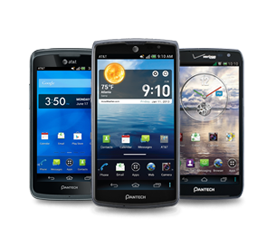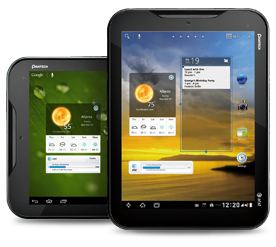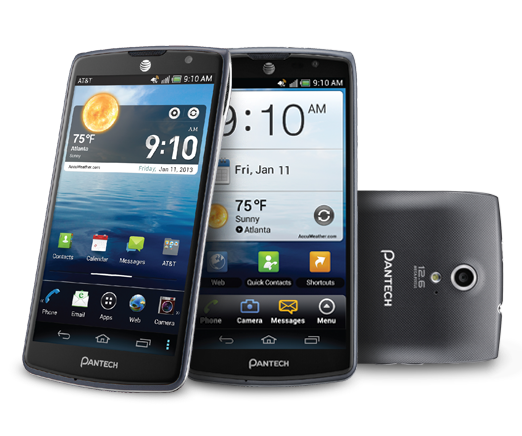
Introducing a phone that provides stunning images, amazing video, luxurious sound, and premium features – everything you want in a smartphone for up to $150 less than the competition.
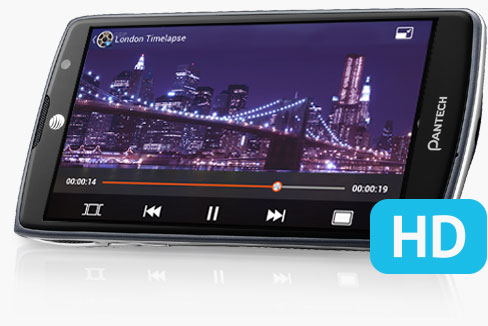
Whether you’re watching a viral YouTube video or playing the latest video game, you want a screen that lets you see every detail. The Pantech Discover’s gorgeous 4.8" high-definition display and 1,280 x 720 pixel resolution means that movies, TV shows and videos come through with stunning clarity.
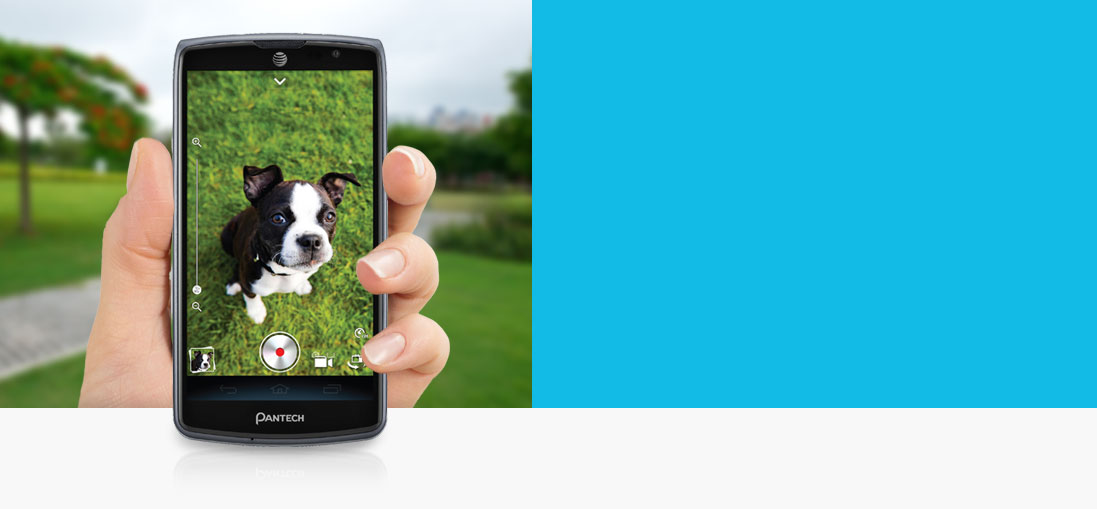
You live an exciting life, so why would you rely on a sub-par camera phone to capture and share your most incredible moments? With a 12.6 MP camera with 4x zoom and an LED flash, the Discover lets you take panoramic, High Dynamic Range (HDR) images with multiple shutter modes and advanced editing features, allowing you to take great pictures no matter the situation.
And with a powerful 2,100 mAh Lithium Ion battery with up to 430 hours in standby mode, you’ll never run out of power when you need it most.
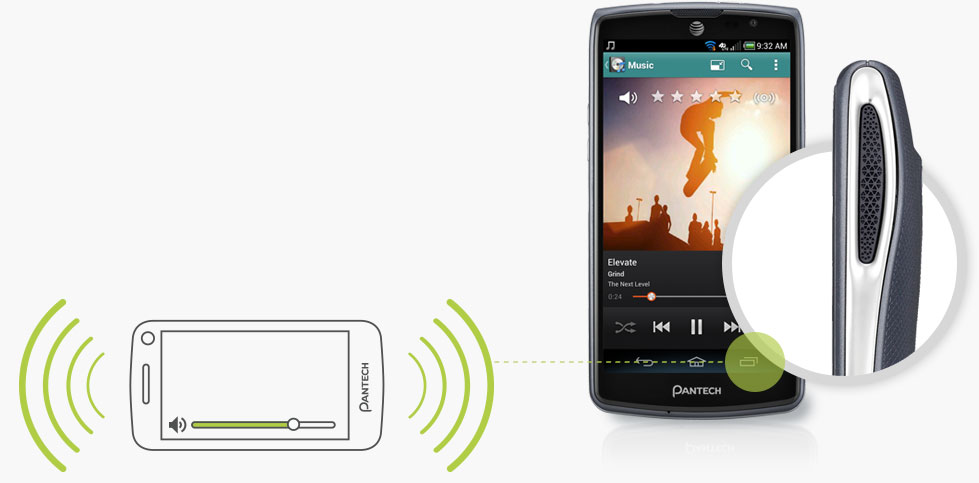
There’s nothing worse than huddling around a weak smartphone speaker trying to hear what’s going on. With the Pantech Discover, you get dual 3D surround sound speakers that offer a dynamic, full-bodied listening experience. Features like treble enhancement, bass boost, and a loudness maximizer mean you get rich, natural 3D audio with full cinema surround sound.
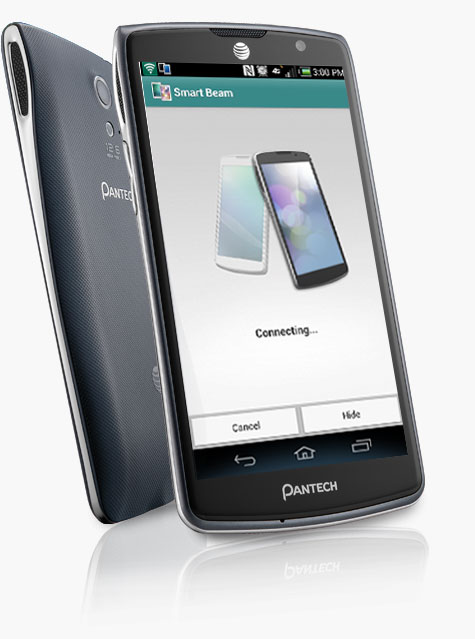
With near field communication (NFC) capabilities, the Pantech Discover will help simplify some of the most common tasks in your life. Share pictures, music, documents and YouTube links with nearby friends, execute simple tasks with programmable smart tags, or pay for goods and services directly from your phone.
And the Discover’s exclusive Easy Experience user interface means you won’t have to scroll all day to find what you’re looking for. So what are you going to do with all that extra time?
*Contents on Music, Gallery, ThinkFree, Video, and Memo may or may not be transferred to other devices through NFC.

We know that you work as hard as you play. That’s why we equipped the Pantech Discover with full VPN (Virtual Private Network) and EAS (Exchange Active Sync) support so that you can have secure access to your corporate email and intranets at all times. The days of being tied to the office are over. Now that you can stay connected to work no matter where you are, you’re free to work smarter and play harder!

The right app at the right time can make your smartphone a lifesaver. That’s why we preloaded the Pantech Discover with a bevy of world-class applications. AT&T DriveMode™ lets you limit the features of your phone when driving so you can stay focused on the road, while the MOG app lets you hear and download millions of songs no matter where you are. To help you work more efficiently, the ThinkFree Mobile app lets you create, view, edit, access and share documents, spreadsheets, and presentations, while Pantech’s innovative SwiftKey technology automatically corrects and predicts as you type. It’s like a digital Swiss Army knife in your pocket!
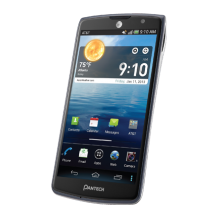
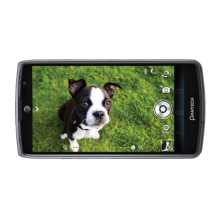
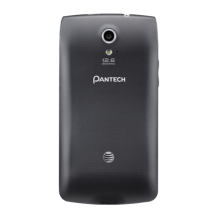
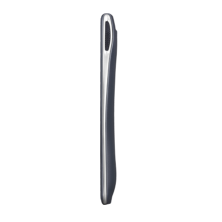
| Height | 5.3" |
|---|---|
| Width | 2.7” |
| Depth | 0.36” |
| Weight | 4.76 oz. |
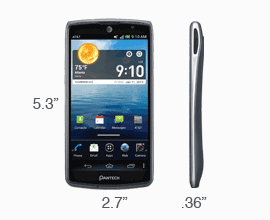
| Display Size | 4.8” |
|---|---|
| Resolution | 1280 x 720 Pixels |
| OS | Android OS |
|---|
| Cellular Technology | 4G LTE, 3G, GSM/GPRS |
|---|---|
| WI-FI Enabled |

|
| Bluetooth |
|
| Text Messaging |
|
|---|---|
| Instant Messaging (IM) |
|
| Mobile Email |
|
| Web Browser |
|
|---|---|
| Preloaded Apps |
|
| Camera Resolution | 12.6 MP (Rear), 2 MP(Front) |
|---|---|
| Zoom | 4x |
| Video Capture | 1080p HD |
| Video Player |
|
|---|---|
| Music Player |
|
| Speakers |
|
| Battery Type | Lithium Ion: 2,100 mAh |
|---|---|
| User Talk Time | Up to 10 hours |
| Standby Time | Up to 430 hours |
| Format | 16 GB w/ 13 GB end-user memory |
|---|
| Keyboard | Touchscreen |
|---|---|
| Predictive Text |
|
| External Memory | 32 GB (Micro SD) |
|---|

"The Pantech Discover, the most smartphone you'll get for $50 with contract."

"Announced early Monday morning at AT&T's developer summit, the Pantech Discover may not seem like much at first, but this slick new smartphone has a lot to offer."

"The AT&T-bound handheld only has a 720p screen, a dual-core CPU and Android 4.0 ICS, but we’re here to tell (and show) you this is not a device that will get lost in the crowd."
"The Pantech Discover is on its way to AT&T. At CES Monday the carrier announced plans to start carrying the Android handset on January 11."

"This machine has a 720p display and a massive 13 megapixel camera and it’ll all be delivered for a mere $50 USD."

"One of Pantech's most ambitious smartphones yet, AT&T's Pantech Discover combines a 4.8-inch 720p HD display with a 12.6-megapixel camera on a 4G LTE, Android handset."
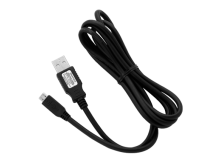
The MicroUSB to USB Charging Data Cable provides the ability to connect your Pantech phone to your computer allowing your Pantech phone to charge through the USB port on your computer. The USB Charging Data Cable also allows you to transfer data files such as music, video, image, etc... from your Pantech device to the computer.
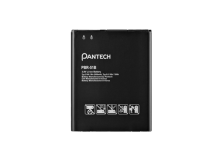
Pantech's Lithium Ion battery is designed to give you the best performance possible. This Lithium Ion battery is specifically engineered for your Pantech mobile phone to deliver the most reliable and long lasting power. (2100 mAh)
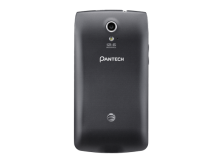
The Pantech Discover Replacement Battery Cover is engineered to offer protection for your 2100mAh Lithium Ion battery. The Pantech Original cover contains a built-in NFC antenna which allows your Discover's NFC features to function properly.
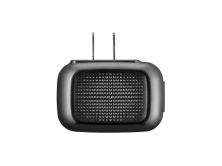
Don’t risk a dead battery at the moment when you need your cell phone the most. By keeping the Pantech Wall Charger handy while at home or at the office, you can be sure that your Pantech device or other micro USB compatible smartphone's battery life is topped off and you're ready to go at a moment's notice.
To order accessories for your Pantech Mobile device email or call 9:00 AM – 6:00 PM CST Mon through Fri
Yes - the Portable Wi-Fi Hotspot is standard on the Discover. You may need to upgrade your data plan to meet the AT&T minimum requirements for supporting Wi-Fi Hotspots. Devices connected to your Discover will use data from your plan. Performance may vary depending on the number of devices connected.
Yes - the Discover supports up to a 32GB Micro SD Card.
Go to Settings, then USB Connection Settings. Select “Media Device (MTP)”. When the Discover is in “MTP” Mode, files can be moved between the Discover’s Internal Memory or SD Card, and a connected PC using the USB cable. The Discover can also sync with your music files using Windows Media Player. A PC with Windows XP and Service Pack 3 (SP3) or later operating system is required.
The Discover provides up to 13GB of memory for installing applications and storing files.
From the Home screen, press Apps, then Settings, then Change Experience. Select Pantech Standard Experience.
The Discover is exceptionally efficient with up to 10 hours of talk time and up to 430 hours of standby time.
Yes – “NFC” Near Field Communication is standard on the Discover. You can use “NFC” to share content with another “NFC” Enabled Device. To enable NFC, go to Settings, then Wireless & Networks and select NFC. Android Beam (below NFC) should also be enabled now. The NFC icon will appear above the main display area now. Contents on Music, Gallery, ThinkFree, Video, and Memo may or may not be transferred to other devices through NFC.
You can backup your contacts and settings to a Gmail account. A Gmail Account must be set up on the Discover and the sync options must be turned on. This will back up your Contacts and Phone Settings to your Android Gmail account. To verify you have a Gmail Account enabled and synced go to Settings, then Accounts and Sync. Make sure an email address ending in “@gmail.com” is in the list. This is the Gmail account to which you may backup your contacts and settings.
You can find a Discover tutorial at the AT&T Learning Center. Click this link:
Please make sure your battery be charged in full before use. Nevertheless, some features such as playing the media files, using camera or camcorder, running applications in the background, constantly syncing email and using Wi-Fi or Bluetooth, can drain the battery quickly than usual.
Below suggetions would help conserve the power:
Please try any of the steps below accroding to your problem:
When Compass does not work correctly, hold your device and draw a 8 for 5 times in a non-magnetic environment. Make sure to use only your wrist.
[Note] There is no setting or application to adjust the digital compass sensor. While drawing 8, it will automatically make correction.
You can adjust backlight brightness in Menu > Settings > Display.
Please try any of the steps below:
In case your device would not power on, please try any of the steps below:
The latest software for your device is not available online. You can find your device software information in Menu > Settings > AT&T software update > Check for updates. If a new version is available for download, please update your device.
[Note] When downloading the software, we highly recommend you to connect to Wi-Fi network instead of using 3G network in order to fasten the download speed and avoid the heavy charges for using 3G data services.
You can adjust backlight turn off time in Menu > Settings > Display.
Please download the compatible PC Suite with your Pantech Crossover and then connect to the PC:
[Note] PC Suite for the Pantech Crossover works with Windows 2000 or XP family, Windows7 and Vista 32 bit. Your PC must have minimum 300MB of free disk space to install PC Suite.
All of Pantech devices currently do not have a hard reset feature. If your device has a problem not responding or slowing down, please try a soft reset by power cycling the device with removing and reinserting the battery.
If you would like to erase all data on your Pantech Crossover, please do a Factory data reset. To do this, go to Settings. Tap Privacy > Factory data reset > Reset device > Erase everything. We recommend you back up your data before doing Factory data reset because it will delete your Google account information and all downloaded applications on your device including ringtones. This will, however, not erase the data saved on SIM and microSD card.
To perform a hard reset for the Pantech Element, follow the steps in this . NOTE: This will erase all user data from the device.
Please try any of the steps below, if your camera does not work:
If your external keys or Home button are slow to respond, it may be due to applications running in the background. Please close all applications, turn off your device, remove and reinsert the battery and turn on the device. If the failure continues after all, your device may be defective and requires a repair service.
If an indivisual key is not functional, that key may be defective. and require a repair service.
In case the PC Suite is not working correctly on your PC:
If Mute icon is pressed during the call, you cannot hear or be heard from the other side. Please deactivate the Mute function.
You are allowed to enter a pattern for five times and after that, you will be asked to wait for 30 seconds before you can try again. If you continuously enter the wrong pattern, your device will be permanently locked and only be unlocked with your Google account. In case you have forgotten the unlock pattern:
If you cannot recall the unlock pattern and has the Google account set up on your device, tap OK > Forgot Pattern? on the bottom of your screen. Sign in with your Google account and create a new unlock pattern. If you know your Google account address, but have forgotten the its password, please visit http://www.gmail.com on a computer. From the Gmail login page, click on the Can't access your account? and follow the prompts to have Gmail send you a password change request link to your other email address. When you have received a new login information, use that information to unlock your device following steps above.
If you cannot recall the unlock pattern and does not have the Google account set up on your device, there is no way to unlock the device. Please return your device to obtain repair or replacement service. Make sure to check with your carrier or Pantech technical support center if your device is eligible for warranty service.
[Note] Please try not to set up a complicated unlock pattern that is easy to forget. Your device will be still locked when restarted.
Some applications do not allow keyboard/keypad inputs. Try working keys in other screen, and if the problem does not go away, restart your device after disconnecting the battery.
Check if the Music Player is actually running and playing a file. Make sure your have not lowered the media volume to 0.
Please try any of the steps below:
If your device would not read the installed micorSD card, try any of the steps below:
If your device is frozen, your device may be having memory conflicts/leaks, damaged system service chains or system lockups due to the Fatal Exception program error. To recover from this, try a soft reset. Please turn off your device, remove the battery, reinsert it and turn on the device to perform a soft reset. If your device is frozen and does not respond to powering off, you may have to remove the battery without ending the device.
If your device supports Bluetooth, your device has been basically tested and found to comply with the FCC and NAC. However, there is no gurantee that inteference will not occur in a paticualr installation.
In case Bluetooth connection is not functioning correctly, please try any of the steps below:
Check if Wi-Fi or 3G services are enabled in order to access the internet. These icons should be displayed on the top right side of your screen.
If your device memory is full, it cannot send and/or receive text message. Please delete any meessages currently in your inbox and outbox to enable messaging.
If the problem is not solved, please try any of the steps below:
[Note] Text messaging is the feature provided from your carrier. You may have to add this feature to your plan and make a payment. At times, it may be disabled due to the problem on the carrier's end.
Please try any of the steps below if your device screen is not responsive:
A soft reset can recover your device from possible memory conflicts/leaks, damaged system service chains or system lockups due to the Fatal Exception program error by fixing the memory structure. Please turn off your device, remove the battery, reinsert it and turn on the device to perform a soft reset. If your device is frozen and does not respond to powering off, you may have to remove the battery without ending the device.
To perform a soft reset for the Pantech Element, follow the steps in this .
You can use a USB data cable to connect the Pantech device to your PC, or you can use Wi-Fi or Bluetooth if your PC is compatible.
Applications may come to shut down altogether at once when you are running several applications simultaneously. This happens due to the memory capability of the device and is not a defect to be repaired or exchanged with new device.
Blocking the device part, where the internal antenna is embedded, may cause poor audio quality. Try not to attach a sticker or a protective film on the top of such part. Do not grab the device covering that part or touch it with finger or metal during the call. Please see where the internal antenna is embedded on your device from the user manual.
Make sure you permit the screen to auto-rotate in Menu > Settings > Display.
[Note] Display does not rotate while on a call and if you are in Camera or S-Board application.
Full charge should be done in around 4 hours using the AC adaptor, but may take up to 5 hours if you charge with USB cable. In both cases, it will take longer than usual if you use the device while charging.
[Note] If the battery level is 10% or below, charging with AC adaptor is highly recommended.
Applications may contain internal errors and do not open on your device. You can contact the developer of that application to report the errors:
Your device could drop calls, if you are outside or far from the call service area. Please check the signal strength indicator on your device screen and move to the area with good coverage.
Blocking the device part where the internal antenna is located, such as adding an attachment on it, touching it by finger or metal during the call, grabbing the device covering that part, may also drop the call signal. Please see where the internal antenna is embedded on your device from the user manual.
If your device is in use for prolonged periods of time (e.g. talking on the device, playing music or video, browsing the web, running applications or charging the battery), it may become warmer than when in standby mode. In most cases, this condition is normal and therefore not a failure of the device.
The GPS signal reception may be interfered by obstacles such as bridges, forests, rainy, foggy or cloudy weather, tunnels, high-rise constructions, mountains, etc. It also cannot penetrate through solid and non-transparent objects. Please avoid these objects or area when connecting to GPS satellites.
Make sure you are in a Wi-Fi service area and covered with strong Wi-Fi signal. The number of bars in Wi-Fi icon shows the signal strength.
If the problem is not solved, try any of the steps below:
[Note] If too many people are connected to one Wi-Fi network, your device may fail to access Wi-Fi due to congestion.
The signal strength indicator on your device screen may display fewer bars at times even when you are in the area of good coverage, but this does not mean that your device is picking up less signal than other devices because all devices are differently designed to display the cell signal.
Do not cover or damage the device part where the internal antenna is embedded. It may be obstructing the device from better reception. Please see where the internal antenna is embedded on your device from the user manual.
If your device seems slow, try any of the steps below to improve the speed:
Please try any of the steps below and then send a test email:
Make sure you are in the area with good cell signal. To ensure it, see the signal strength indicator on the top right of your device screen.
If the bar is full, then please try any of the steps below:
If the website size is too big or requires certain technical specifications, it may not be viewable in your device.
[Note] The Pantech Crossover does not support Adobe Flash Player and thus, websites built on flash player are not displayed.
Please try any of the steps below and then send a test email:
To display pictures stored on your microSD card using Gallery, make sure your device is not mounted as a USB storage device. (On the Pantech Crossover, turn off USB storage by tapping the Notification bar on top of your screen.) When connected to a PC and PC is reading memory, your device cannot access microSD card.
SIM card is the Subscriber Identity Module card that you receive with your device service subscription. It contains your registration information and PIN code. It should be kept secure.
Having difficulties in finding your answers in the Product Manuals section?